Bitbucket Cloud

How to connect a Polaris project to a repository in Bitbucket Cloud.

Prerequisites

Create a Bitbucket API token

Authentication between Bitbucket Cloud and Polaris is managed with an API token that you create in Bitbucket. If you haven't done so already, follow the instructions below or in the Bitbucket Cloud documentation to create an API token: Create an API token.
Note: App passwords have been deprecated for Bitbucket Cloud. Existing projects integrated using App Password will continue to work until the password expires or Atlassian ends support. After your App Password stops working or if creating a new integration, use API tokens.
To create an API token in Bitbucket:
  1. Select the Settings gear icon in the upper-right corner of the top navigation bar.

  2. Under Personal settings, select Atlassian account settings.

  3. From the Atlassian Account page, select the Security tab on the top navigation bar.

  4. Select Create and manage API tokens.

  5. Select Create API token with scopes.

  6. Give the API token a name and an expiry date. 365 days is recommended, select Next.

  7. Select Bitbucket as the app and select Next.

  8. Select the scopes section Read. Select read:repository:bitbucket and select Next.

  9. Select the Create token button. The page will display the New API token.

  10. Copy the generated API token and store.

Important: The token is only displayed once and can't be retrieved later. Store it in a secure location. Each time you modify a project's SCM integration, you'll need to reenter the token to save your changes.

Connect to a repository in Bitbucket Cloud

To connect a project in Polaris to a repository in Bitbucket Cloud, follow these steps:
  1. In Polaris, open the project you wish to connect to a repository (go to Portfolio, select an application, and select a project).
  2. Go to Settings > Integrations.
  3. Select Cloud-hosted.
  4. Select the source of your repository: Bitbucket.
  5. Enter Email (Bitbucket Account Email).
  6. Enter the Repository URL.
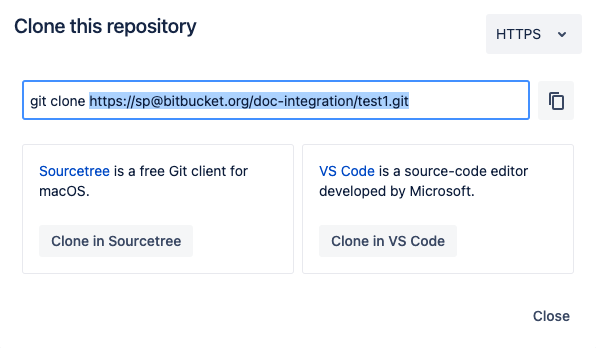
    To obtain the repository/clone URL, open your Bitbucket project and select Clone. Copy the HTTPS URL (SSH is not supported) starting at https.

  7. Under Repository Access Token, enter the API token you created in Bitbucket.
  8. Click Test your Connection. A spinning circle indicates the test is in progress.
  9. If your connection is successful, click Save.

    If your connection test is unsuccessful, check the following and retry:

    1. Your network connection is stable.
    2. Check the Repository URL and Access Token to make sure they are accurate.
    3. Check that the Repository Access Token is still valid and has not expired.
    4. Check that you selected the correct provider for your source repository.

Next steps

Now, you can scan on demand (see How to test from the web UI) or schedule automatic testing on a daily or weekly basis (see Test scheduling policies).

Note: From the Tests screen, before beginning a test manually, make sure to test the connection.