GitHub and GitHub Enterprise

Prerequisites

Creating a personal access token

Authentication between GitHub and Polaris is managed with a personal access token that you create in GitHub. If you haven't done so already, create an access token. For additional information: GitHub > Managing your personal access tokens.
Important: Token must be created by a GitHub Organization Owner or users with the "Manage organization webhooks" permission, who are authorized to manage organization webhooks. Although other GitHub users may be able to select the admin scope requirements when creating a token, the token will not work due to permission requirements in GitHub to manage organization webhooks.
  1. Sign in to GitHub.
  2. In the upper-right corner of any page, click your profile photo, then click Settings.
  3. In the left sidebar, click Developer settings.
  4. In the left sidebar, under Personal access tokens, click Tokens (classic).
  5. Select Generate new token, then click Generate new token (classic).
  6. Name your token.
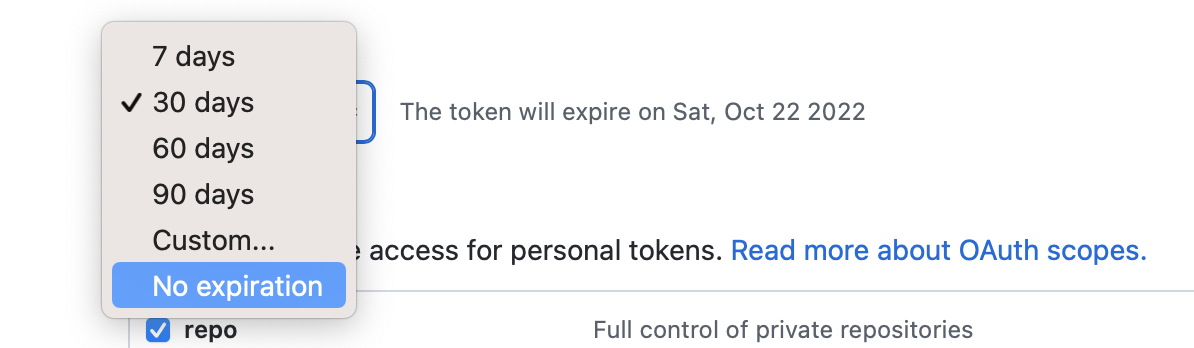
  7. Set the token's expiration date. To avoid issues, we recommend No expiration.
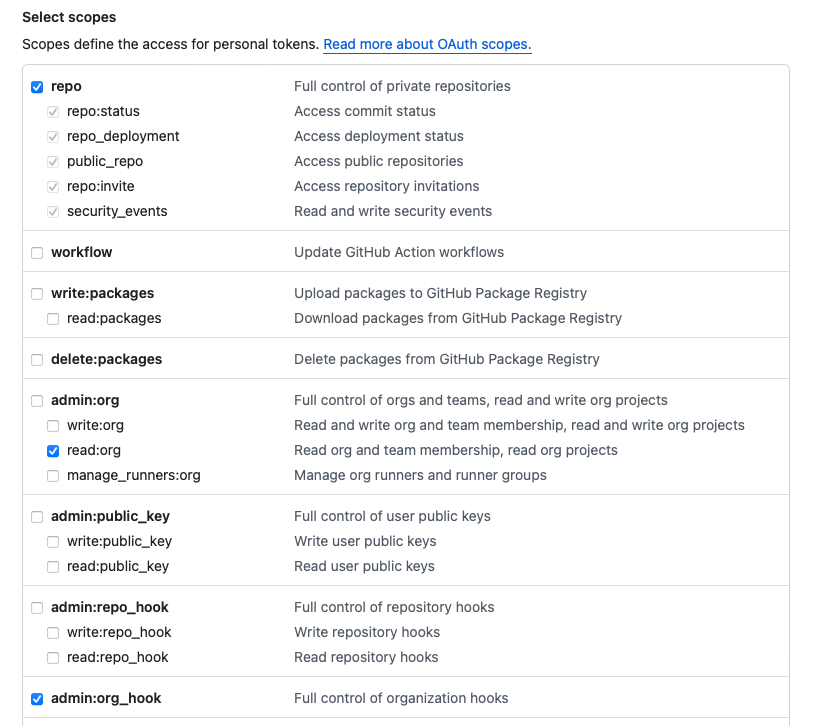
  8. Under Select scopes, select repo (all), read:org (under admin:org), and admin:org_hook.
  9. Click Generate Token.
  10. (Optional) Select the copy icon to copy the token.

  11. To use your token to access resources owned by an organization that uses SAML single sign-on, authorize the token via Configure SSO. For more information, see Authorizing a personal access token for use with SAML single sign-on in the GitHub Enterprise Cloud documentation.
    Important: Store your token in a secure location. Each time you modify a project's SCM integration, you'll need to reenter the token to save your changes.

SCM bulk onboard to create applications and projects

See General Prerequisites before starting.
  1. On the Portfolio page, select + Create > New Application(s) with SCM.
  2. Connect to your SCM:
    1. Select GitHub Standard or GitHub Enterprise Cloud.
    2. Enter the personal access token created in GitHub (see Prerequisites ) under Repository Access Token.
      Note: The personal access token provided here will be used to complete the onboarding process and will be subject to rate limits enforced by GitHub.
    3. Click Connect.

      You should receive a Connection Successful message and the Quick Start options should be visible. If your connection test is unsuccessful, check the following:

      • Your network connection is stable.
      • Check the Repository Access Token to make sure it is accurate.
      • Check that the Repository Access Token is still valid and has not expired.
      • Check that you selected the correct provider for your source repository.
      • Check that your organization allows use of personal access token (classic).
      • Check that you have authorized use of access token outside SSO (if applicable).
  3. Under Quick Start, Select method: (Repository Mapping is different depending on the selection).
    • Matching Organization Names (Automatic)
    • Mapping Repositories (Custom)
  4. Repository Mapping: This will be different according to which method is selected.
    1. Automatic Mapping: Lists the matching organization names as applications and projects. You can view repositories to be imported by using the pulldowns (read only).
    2. Custom Mapping: Select New (type application name) or Existing (select application from pulldown), then select repositories from pulldowns under Projects. If an arrow is next to a name, you can click to select repositories within it. Click Add More to map repositories to multiple applications.
    Note:
    • GitHub organization maps to a Polaris application
    • GitHub repo maps to a Polaris project
    • GitHub branch maps to a Polaris branch

    Application and project names match organization and repository names from GitHub, respectively.

Customizing onboarding (optional)

  1. Assign Policies: Choose Issue Policies, Pull/Merge Request Policy, Component Policy and/or Test Schedule Policies. All the projects created with this import will be assigned these policies.
    Note: For pull request comments, create or assign a pull/merge request policy (see Pull/merge request policies) and enable "A new pull request is created or updated" in your test automation (see Event-Based Test Automation in Polaris for SCM Integrations).
  2. Assign Application Role: Grant users access to all of the applications and projects you create with an application level role (administrator, contributor, member, observer, or custom roles).
    • The application level roles you select are applied to all of the applications that are being created.
    • Double-check that the user being assigned has access to the repositories in your SCM provider.
  3. Under Integrations: Allows you to sync your SCM provider with Polaris and include non-default branches in your onboarding and sync. After onboarding is complete, you can manage these setting on the application level. See Synchronizing Polaris with your SCM Provider.
    1. Keep repositories and branches synchronized with SCM: Polaris will actively monitor repository updates, deletions, renames, and branch modifications, including updates, deletions, and renames, on the SCM provider. It will then implement the necessary changes to the corresponding Projects and Branches.
      Note: If this is selected without the additional branches option below, this will apply only to default branches.
      Note: Monitoring and updates for renaming is not supported for GitLab.
    2. Continue to import new repositories for above organization. For example, if you create a new repo in GitHub, Polaris will create a new project in Polaris. This is not available when you use custom matching during bulk onboarding.

    3. Import additional branches matching substrings. Default branches are automatically imported but this allows you to import/sync non-default branches.

      1. When selected, a new input field will appear. Enter substrings separated by commas (i.e. -release, -demo)

      2. When selected, a checkbox is available if you want to Continue to import new branches matching substrings after the initial integration. Polaris will monitor for branch creation events on all the repos under the organization/application that match the specified substrings.

  4. Click Import Repositories.
  5. On your Portfolio page, a progress bar with a percentage done will track your progress.

    If the onboarding fails, an email notification will be sent to the user who initiated the onboarding. Detailed information on any synchronization failures can be obtained in Audit Logs.

    Click Cancel to cancel the import. Any repository in the process of being imported at the time of cancellation will complete in the background after the cancel is accepted. Then all onboarding will be stopped immediately. For example, if you import ten repositories and cancel at 50%, five repositories would be imported and five repositories would not.

  6. You can now set up event-based test automation. See Event-Based Test Automation in Polaris for SCM Integrations.

SCM bulk onboarding projects into an application

See General Prerequisites before starting.
  1. On the Portfolio page, select an application by clicking on its name.
  2. On the Application page, select + Create > New Project(s) with SCM.
  3. Connect to your SCM:
    1. Select GitHub Standard or GitHub Enterprise Cloud.
    2. Enter the personal access token created in GitHub (see Prerequisites ) under Repository Access Token.
      Note: The personal access token provided here will be used to complete the onboarding process and will be subject to rate limits enforced by GitHub.
    3. Click Connect.

      You should receive a Connection Successful message. If your connection test is unsuccessful, check the following:

      • Your network connection is stable.
      • Check the Repository Access Token to make sure it is accurate.
      • Check that the Repository Access Token is still valid and has not expired.
      • Check that you selected the correct provider for your source repository.
      • Check that your organization allows use of personal access token (classic).
      • Check that you have authorized use of access token outside SSO (if applicable).
  4. Assign Policies (optional): Choose Issue Policies, Pull/Merge Request Policy, Component Policy and/or Test Schedule Policies. All the projects created with this import will be assigned these policies.
    Note: For pull request comments, create or assign a pull/merge request policy (see Pull/merge request policies) and enable "A new pull request is created or updated" in your test automation (see Event-Based Test Automation in Polaris for SCM Integrations).
  5. Repository Mapping: Select repositories to import as new projects from pulldowns. If an arrow is next to a name, you can click to select repositories within it.
  6. Click Import Repositories.